Image to Video

Upload image

Inspirations

Pick a visual rhythm, then generate to open the task feed.

Product orbit

8s · Product ad

Portrait push-in

5s · Cinematic

Poster reveal

6s · Social

Illustration drift

10s · Art

Interior dolly

5s · Real estate

Fashion turn

8s · Campaign

Turn Any Image into a Video

Give it an image and a description of how it should move, then get a short AI video clip in under a minute. If you just made an AI image in GPT image 2, skip the upload — animate it directly.

How it works

How to Use Image to Video AI

Most images work — clear subject, decent resolution, simple background. Output quality depends mainly on your prompt: the more specific your motion prompt, the closer the output lands.

1

Upload Your Image

Drop a JPG, PNG, WebP, or HEIC file into the upload area. If you don't have a source image ready, generate one with GPT image 2 first.

2

Describe the Motion

Write what the subject is doing, which direction the camera moves, and how fast. Specific motion instructions beat generic style words.

3

Generate and Download

Click Generate Video. Preview the clip in the browser, then download the animated video when you're satisfied.

What You Can Create with Image to Video

Four types of visuals that work especially well with image to video AI — and what to expect from each.

Portrait & Selfie Photos

A headshot or selfie comes back with the subject slowly turning, a blink, hair catching light — something small that makes a still feel alive. Works for Instagram Stories, profile headers, or any placement where motion holds attention longer than a static image. Front-facing portraits with a clear subject give the model the most to work with.
Product Images for Ads

A flat product photo becomes a short clip with a slow rotation or a light shift — enough motion to stop a scroll without looking forced. Upload an apparel shot, a cosmetics flat lay, or an electronics render. Suitable for Meta, TikTok Shop, and Google display placements. Produces video assets without a shoot.

AI-Generated Art & Illustrations

Start with a photo from GPT image 2, click Animate, and it goes straight into the image to video tool — no download needed. Works best with compositions that have a clear focal point: a character, a landscape, a defined subject.

Holiday & Event Photos

A birthday photo where the candles actually flicker. A winter portrait with something falling through the frame. The motion is subtle — enough to make it feel like a moment rather than a freeze. Clips export quickly and stay within most messaging app size limits.

Who Image to Video Is For

The same generator supports creators, product teams, AI artists, and personal clips — the difference is what motion you ask for.

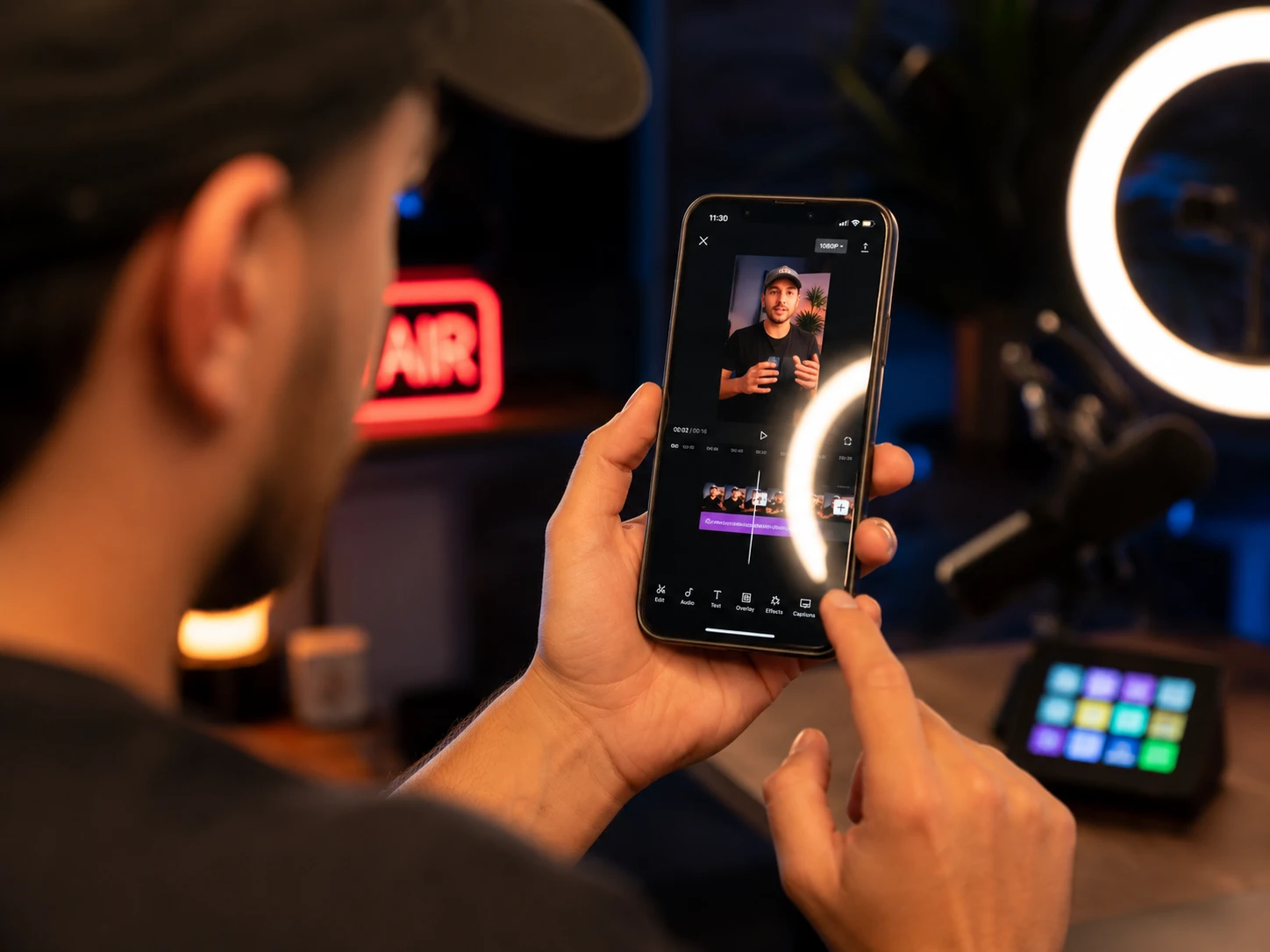
Content creator filming a social media video with a smartphone and ring light

Social Media Creators

Social Media Creators

Turn still posts into motion assets

You need video content without a production setup. Image to Video turns any still — a photo, an AI image, an illustration — into a clip ready for Reels, TikTok, or Stories.

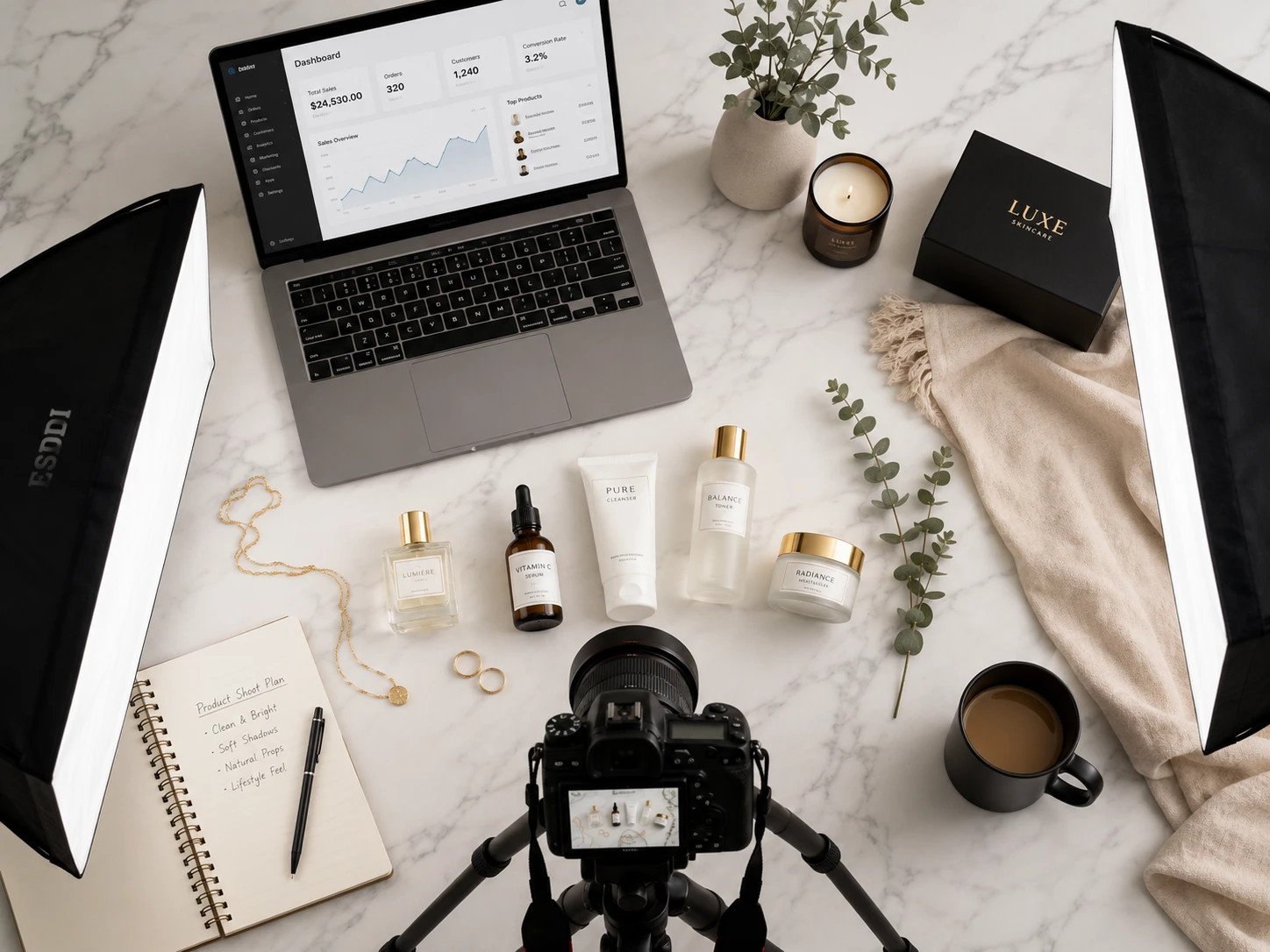
Professional product photography flatlay with skincare items, camera, and e-commerce dashboard

E-Commerce Teams

E-Commerce Teams

Create product clips without a shoot

Product video outperforms stills in paid social. Use existing product photography to generate short clips for Meta ads, TikTok Shop, and display placements.

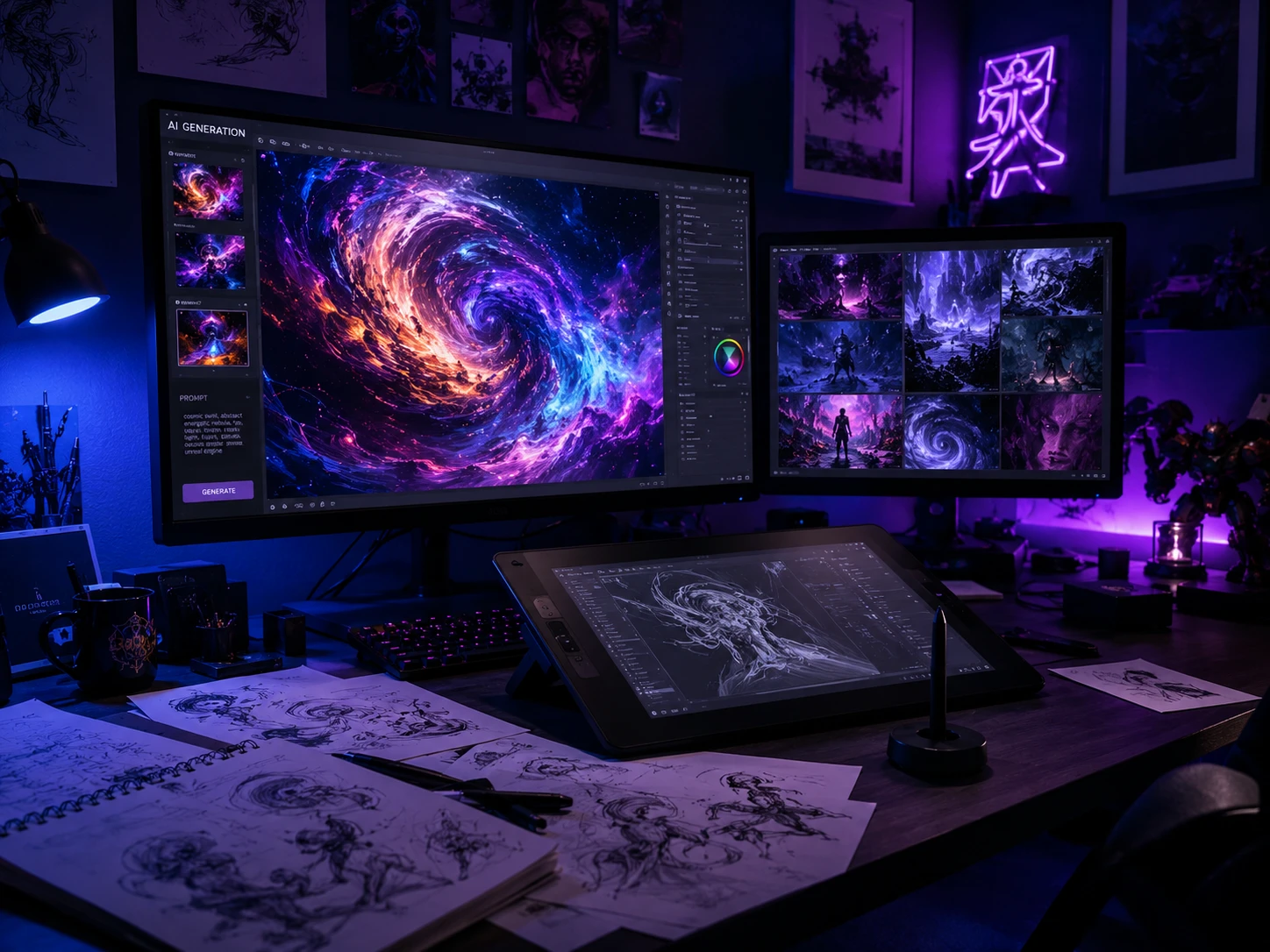
Digital artist reviewing AI-generated artwork on dual monitors in a dark creative studio

AI Artists & Designers

AI Artists & Designers

Add motion to generated images

You already generate images. Image to Video adds motion as the next step: generate, animate, post — without switching tools or losing quality to a download-and-re-upload cycle.

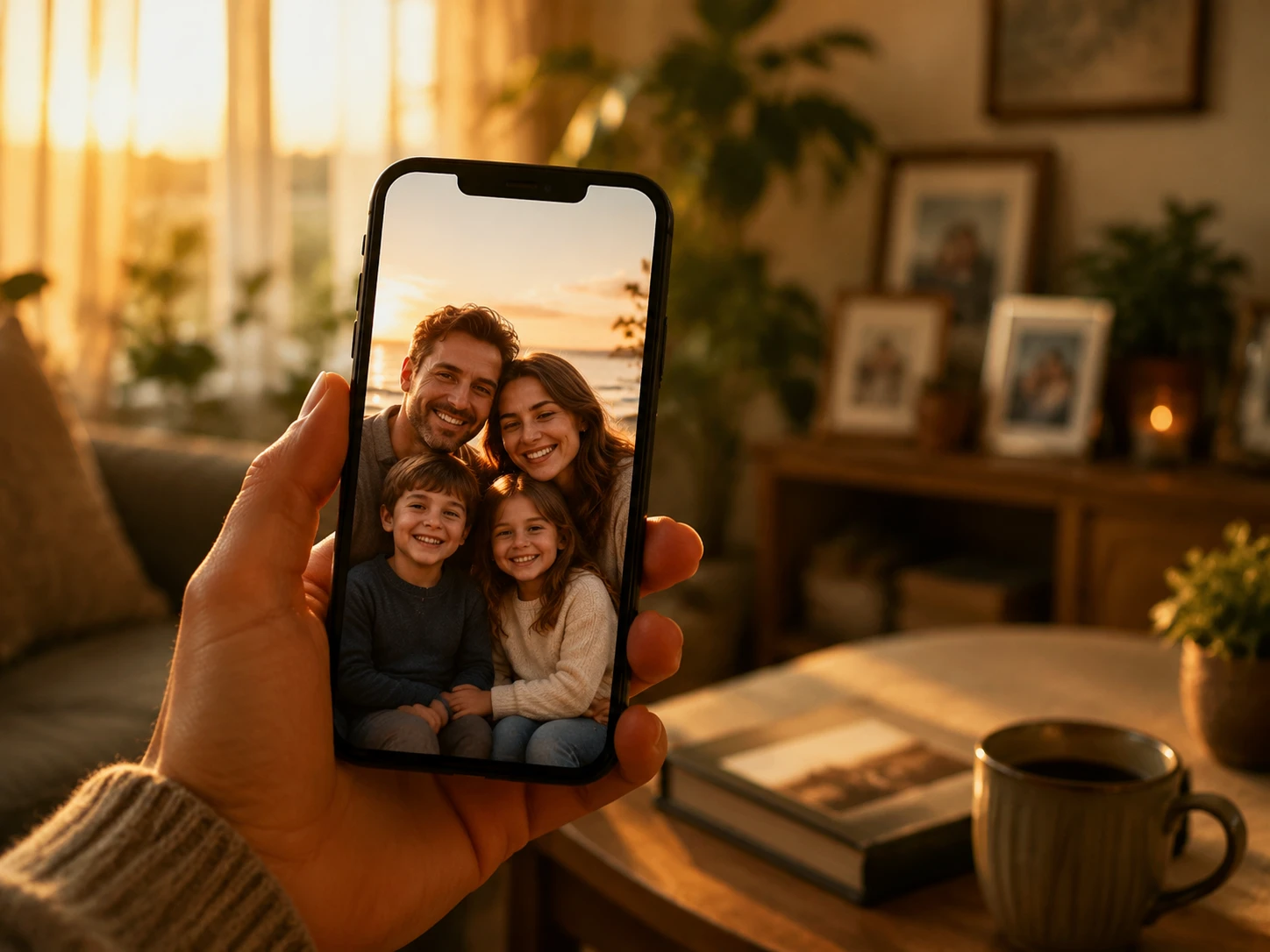
Person holding a smartphone showing a family photo in a cozy living room

Individuals

Individuals

Make a memory move

Personalize a message, make a birthday photo feel alive, or try a subtle camera move with a photo you already have.

Why GPT image 2

Most image-to-video tools start where you end up: you bring a file, they make a video.

Images created in GPT image 2 get an Animate button next to the output. Click it — your photo moves directly into the Image to Video workspace, same quality, no intermediate file. For anyone who generates images regularly here, it cuts one step from every video they produce.

For images brought in from outside, the image to video tool works the same as any standalone converter.

Image to Video Models You Can Use

Switch between image-to-video models in one AI video generator.

Seedance 2.0

Seedance 2.0 Fast

Kling 3.0

HappyHorse 1.0

Veo 3.1

Frequently Asked Questions

Practical answers before you submit an image-to-video generation task.

01

What image formats can I upload?

JPG, PNG, WebP, and HEIC. Minimum recommended resolution is 512 x 512 pixels. Very small or heavily compressed inputs produce softer output.

02

What should I write in the prompt?

Be specific about movement — what's moving and where the camera points: speed, direction, subject action. Specific motion instructions produce better results than style words like cinematic or dramatic.

03

How long is the animated video clip?

Clip duration depends on the model selected. Available duration options for each model are shown in the interface before you generate.

04

Can I use the videos commercially?

Commercial use is available to paid plan subscribers. Credits received at signup are for personal and non-commercial use.

05

Is my uploaded image private?

Images are transmitted over HTTPS and processed in isolated jobs. They are automatically deleted within 24 hours and are not used to train AI models.

06

What if I don't have enough credits?

When your balance falls below the cost of a generation, the Generate button becomes unavailable. Additional credits can be purchased from the pricing page.

Start Animating

Upload an image and see what it looks like in motion.